
Keyword Monitor is a feature that allows you to collect specified words. It has a wide range of uses, such as understanding user issues and needs, competitor and market research, and listing sales target accounts.
This article introduces in detail what you can specifically do with Keyword Monitor and how to use it effectively.
Collecting posts with Keyword Monitor
- Click Inbox from the menu.
- Click Keyword Monitor Settings.
- Click "Add."
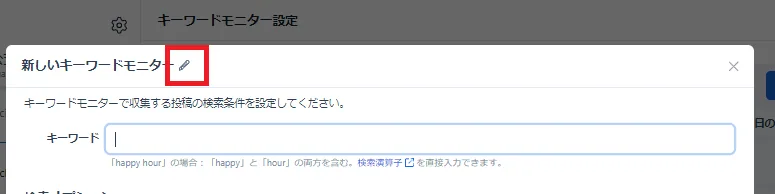
- Click the pencil icon next to the new Keyword Monitor and enter a title.
- Enter the keyword you want to collect in the 'Keyword' field (you can set filtering or exclusion criteria in advance from post content or accounts by entering search options).
- Click 'Add' to complete the setup.
Collecting posts with Keyword Monitor
- Click the keyword you want to collect posts for.
- Click 'Get latest posts' at the top of the screen.
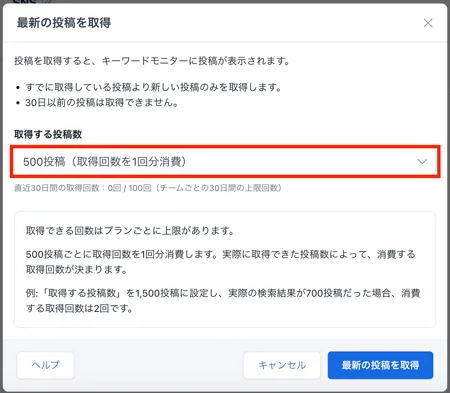
- Select the 'Number of posts to get' from the dropdown and click 'Get latest posts' at the bottom right (you can choose the number of times to get posts depending on how many you want to collect).
How to use Keyword Monitor
1. Collect and manage posts related to keywords
- Check new posts in real time
- By setting up Keyword Monitor, you can automatically collect posts containing specified words. For example, by specifying your brand name, product names, or industry-specific words, you can get new posts in real time.
- Set up high-priority keywords in detail
- Since you can register multiple keywords, it is convenient to register each one individually, such as your company name, service name, and product name.
- If you want to perform more detailed monitoring, use combined keywords or hashtags (e.g., 'brand name + bug', 'competitor product name + reputation', etc.). (Reference: About operators that can be used for keywords)
2. Streamline communication with users
- Pick up 'user voices' that are often overlooked
- Even without mentions to the official account, posts collected by Keyword Monitor are automatically displayed. If a user is talking about your service, you can quickly find and respond to them, reducing communication loss.
- Early detection of complaints and negative information
- Even if there are posts that lead to complaints or dissatisfaction, you can notice them in real time and deal with them early. This also helps improve customer satisfaction and avoid the risk of social media backlash.
3. Streamline campaigns
- You can use Keyword Monitor to run campaigns efficiently. For details, see 'Running a hashtag campaign'.
4. Use for marketing and research
- Understand issues and needs from user voices
- Posts collected by Keyword Monitor often reflect user voices. By specifying your company name, service name, or product name, you can get hints for product improvement and service expansion.
- You can find opinions such as 'there are many requests for this' or 'many users are having trouble with this part,' which can be used in marketing measures.
- Check competitor trends
- By setting competitor names and their product names in Keyword Monitor, you can look for points of differentiation or get hints for promotions.
- By specifying 'industry trend words,' you can respond quickly to market changes.
- Measure the response to events and campaigns
- By registering event names or campaign hashtags in Keyword Monitor, you can understand the reaction to ongoing projects.
- You can check the reaction from fans and the status of sharing in real time and use it for the next measures or follow-ups.
5. Listing sales targets
Set keywords your target customers are likely to use and collect relevant posts with Keyword Monitor to reach out to them.
- Example: Social media management agency → "social media management help" "struggling with social media marketing"
- Example: HubSpot-related → "how to use HubSpot" "CRM implementation"
Review the collected posts and reach out as follows. For sales outreach, direct messages are more effective than replies.
- Empathy/Advice: "I used to struggle with that too! This helped me."
- Informational: "This resource might be helpful" (attach a link to a blog post or free resource).
- Proposal: "I can help with that! Feel free to DM me for details."
6. Use filters and CSV data
- By using filters, you can narrow down accounts based on specific criteria such as follower count or X Premium verified accounts (Reference: List of items that can be set with Advanced filters).
- Data can be downloaded as a CSV file, making it easy to perform your own analysis or integrate with other data.
Tips for using Keyword Monitor
- Select keywords based on your goals
- In addition to your company and product names, register industry terms and common nicknames or abbreviations used by users. Researching how customers actually refer to things can help you discover unexpected keywords.
- Frequent monitoring and response
- If you leave collected posts unaddressed, you won't be able to respond quickly and might miss out on valuable feedback or opportunities. It's effective to check several times a day and aim for quick action.
- Boost efficiency by combining with other features
- By using it with SocialDog's Follower Management and Scheduled Posts features, you can create trend-aware posts and gain more followers.
- Example: Schedule posts based on "hot topics" discovered through Keyword Monitor.
- By using it with SocialDog's Follower Management and Scheduled Posts features, you can create trend-aware posts and gain more followers.
SocialDog's Keyword Monitor is a powerful tool for managing X (Twitter) accounts, whether for business or personal use.
Stay on top of every conversation about your brand, products, and industry trends to enhance engagement and make informed marketing decisions. Start using this feature today to take your X management to the next level.