A follow & repost (retweet) campaign is an X (Twitter) campaign where users enter by following the host account and reposting (retweeting) the campaign post. With a low barrier to entry and the ability to reach non-followers through reposts (retweets), it's ideal for quickly expanding brand awareness and gaining new followers.
With SocialDog's Campaigns feature, you can centrally manage everything from creating campaigns and collecting entries to drawing winners and sending DMs (Direct Messages) all within SocialDog.
This article provides a step-by-step guide on how to run a follow & repost (retweet) campaign using SocialDog, from preparation to winner notification.
* The Campaigns feature is available on the Business and Enterprise plans.
What you can do with SocialDog's Campaigns feature
The Campaigns feature allows you to complete the following series of tasks within SocialDog.
Setting entry requirements
Specify the X account to follow and the post to repost, and set the entry period for campaign participants.
Select a post to be reposted (retweeted) from your scheduled posts in SocialDog, or create a new one.
Automatic entry collection
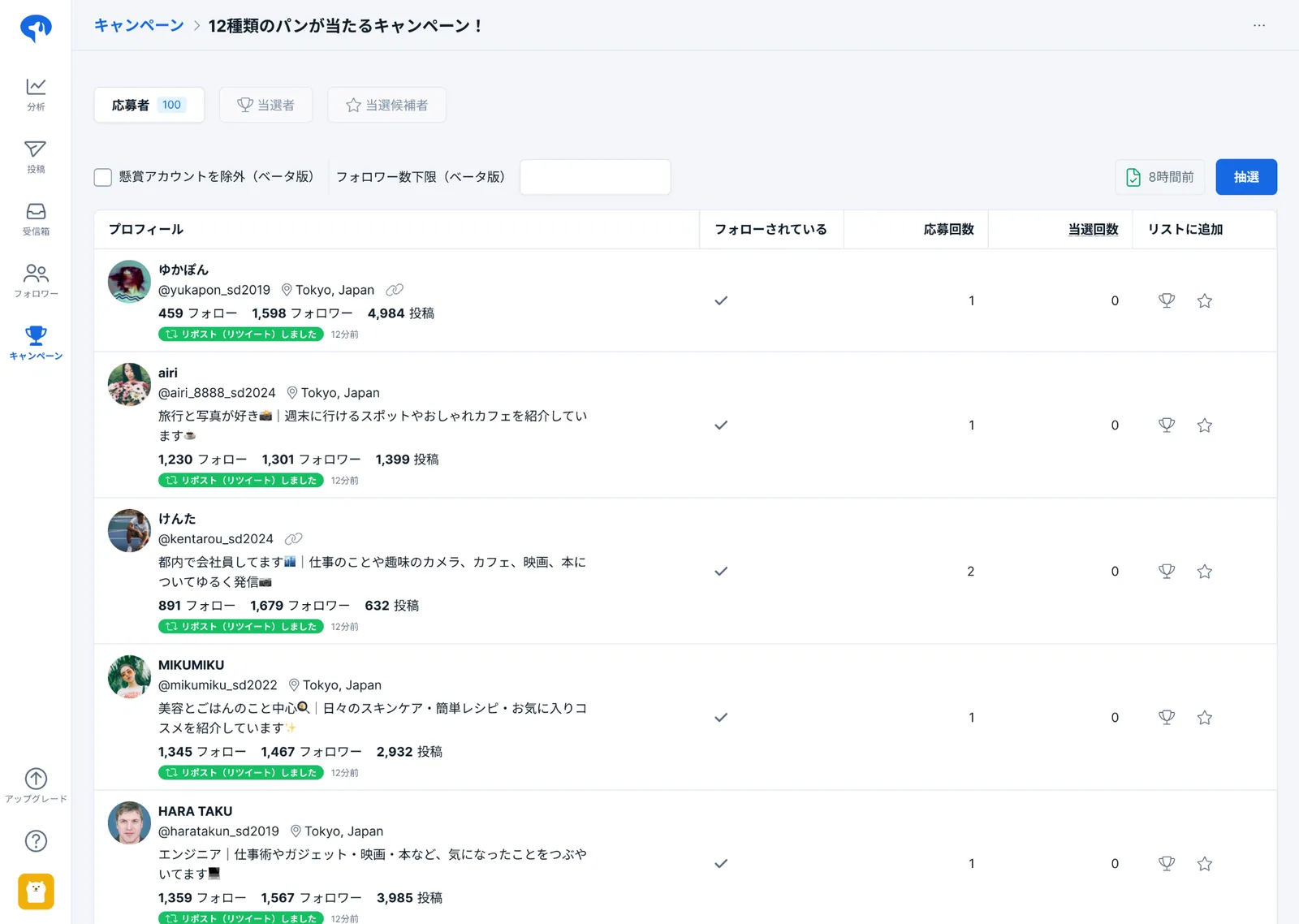
SocialDog automatically collects applicants during the entry period. Users who have both reposted the specified post and followed the specified X account will appear in the applicant list.
You can check the list at any time during the entry period.
Draw
You can run a drawing by specifying the number of winners and runner-ups from the entry list. By drawing runner-ups at the same time, you can easily select alternates if a winner is disqualified or unavailable.
You can also choose to select winners manually without using the drawing feature.
Send bulk DMs
Send the same DM to all winners at once. You can embed individual gift codes in the messages, allowing you to handle everything from winner notification to prize distribution within SocialDog.
Campaign workflow
Follow these steps to run a follow & repost (retweet) campaign.
- Create a campaign in SocialDog
- Create a campaign post and set entry requirements
- Monitor the entry list during the entry period
- Run the drawing (or manually select winners) after the entry period ends
- Send DMs to winners in bulk
The following sections explain the steps in detail.
Step 1: Create a campaign
Once a campaign is created, entry collection will automatically begin when the entry period starts.
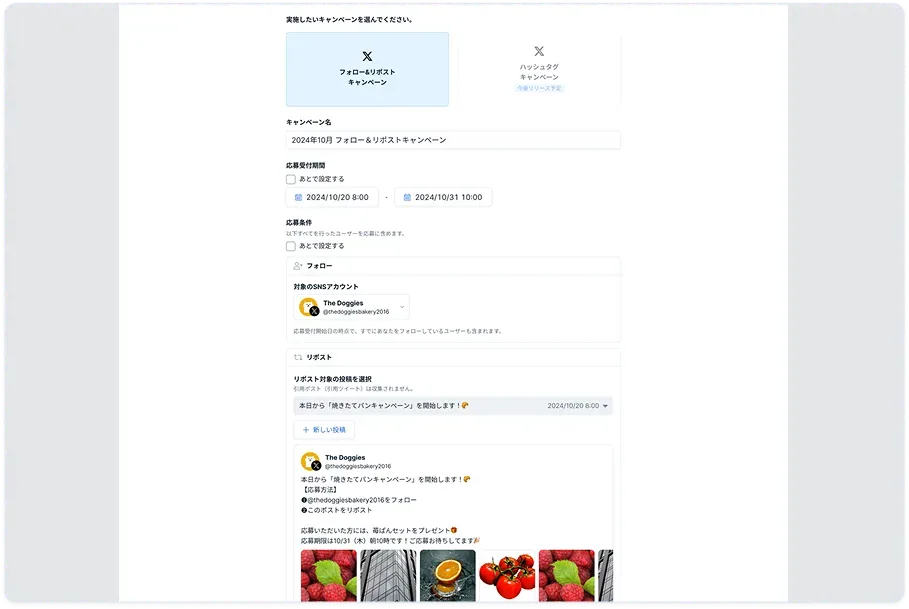
- Click Campaigns in the menu.
- Click New campaign.
- Click Follow & repost campaign.
- Enter the following information.
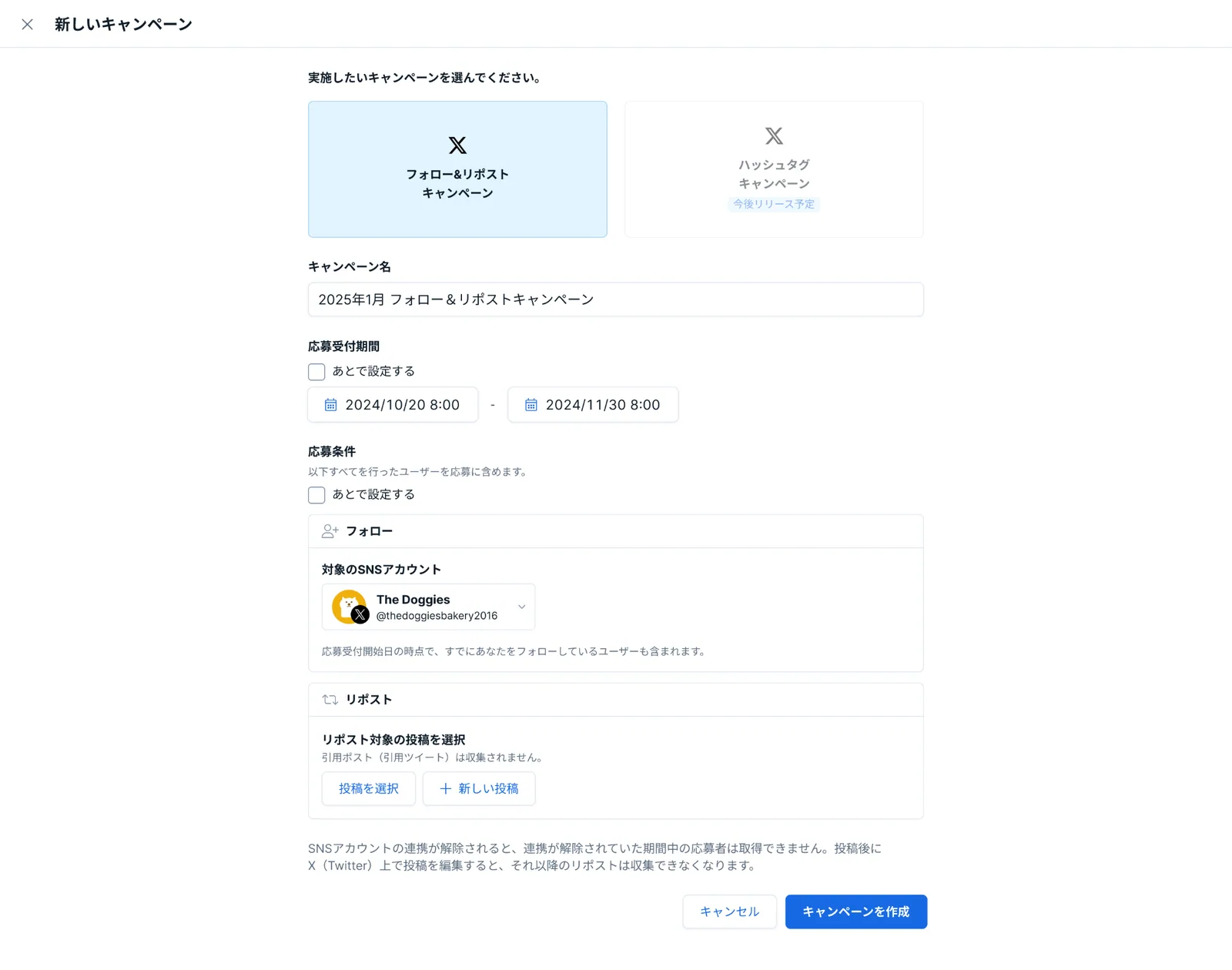
- Campaign name: A name for internal management within SocialDog. It will not be visible to participants.
- Entry period: Users who repost (retweet) within the set period will be collected as entrants. Users who were already following the account before the start of the entry period are also eligible if they repost (retweet) during the period.
- Entry conditions: Specify the X account to follow and the post to repost. Select a scheduled post created on SocialDog or create a new one. Posts already published on X or ad posts cannot be selected.
- Click Create campaign.
A new campaign must be created for each instance.
Changing campaign settings
Settings for created campaigns (campaign name, entry period, entry requirements) can be modified later.
- Click Campaigns in the menu.
- Click the "..." icon at the end of the row for the campaign you want to change.
- Click "Edit campaign".
- Configure the changes and click "Save".
Please note the following when changing settings.
- If you edit settings after the entry period has started, the "Applicants" list will be updated to show users who meet the new entry requirements. However, the "Winners" and "Candidates" lists will remain unchanged.
- Once the post set as an entry requirement is published, the entry requirements cannot be changed. If you want to run a campaign with a different post, please create a new campaign.
- Currently, campaigns cannot be deleted once created. Please review the details carefully before creating a campaign.
STEP 2: Check applicants
Users who meet the entry requirements are automatically added to the applicant list. The list can be checked even during the entry period.
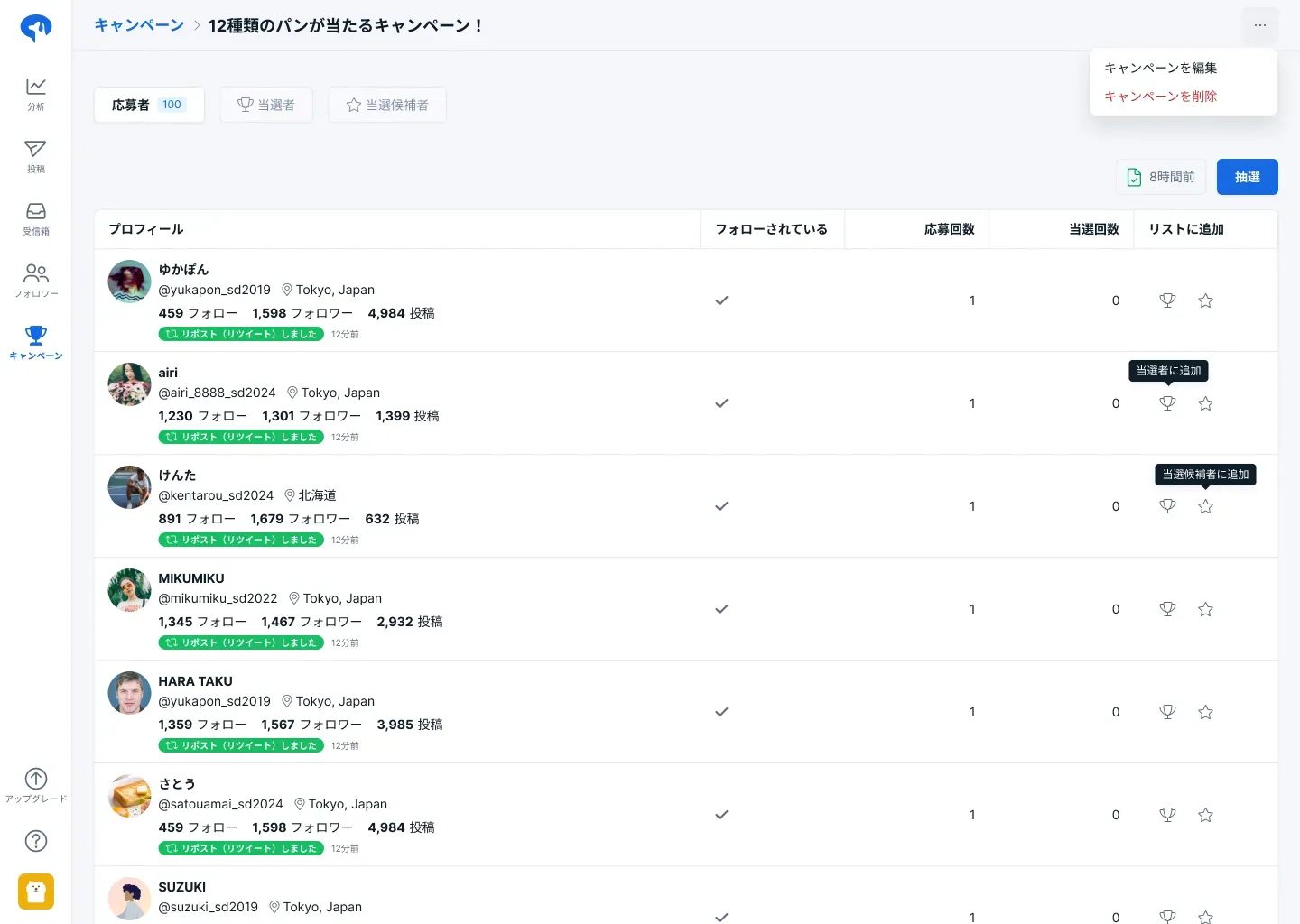
- Click Campaigns in the menu.
- Click "Applicants" in the row of the campaign you want to check.
Please note the following regarding the applicant list updates.
- It may take some time for a user's follow or unfollow action to be reflected in the applicant list. Users who have unfollowed may remain on the list for a short period.
- Users who have reposted (retweeted) will not be removed from the applicant list even if they later undo the repost (retweet).
The applicant list is not updated in real-time and will reflect changes with a slight delay.
Download applicant list as CSV
You can download the applicant list as a CSV file if needed.
- Click Campaigns in the menu.
- Click "Applicants" in the row of the target campaign.
- Click "Download CSV" at the top right of the screen.
The CSV file includes information such as the applicant's username and follower count, which can be used for internal sharing or analysis with external tools.
STEP 3: Draw winners
After the entry period ends, you can draw winners from the applicant list. The draw is random, and users already selected as winners or candidates will be excluded.
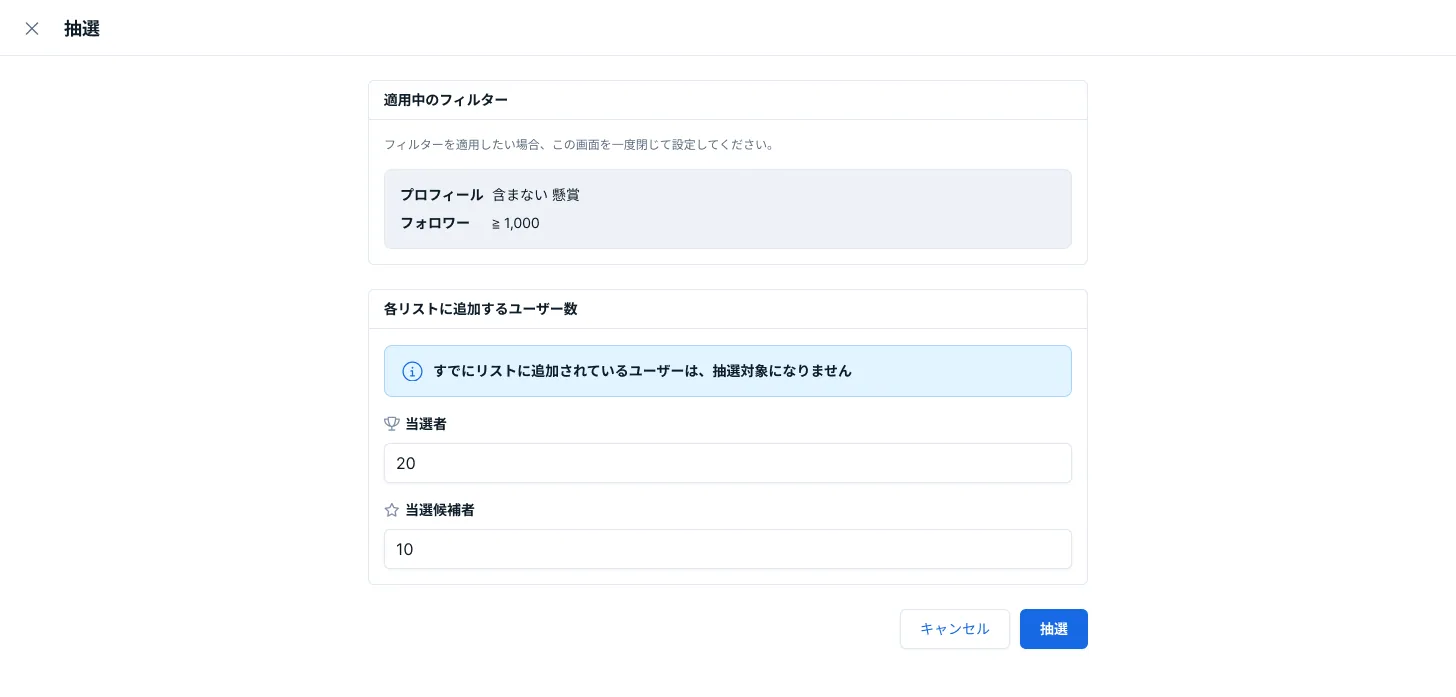
- Click Campaigns in the menu.
- Click "Applicants" in the row of the campaign you want to draw from.
- Click "Draw".
- Enter the number of winners and candidates.
- Click "Draw".
- After the draw is complete, check the results from the "Winners" and "Candidates" tabs at the top of the screen.
If there are no issues with the draw results, you can proceed to send DMs to the winners. If you want to adjust the results, you can also use the following manual operations.
Manually add, exclude, or promote winners
You can also manually select applicants as winners without using the draw function. It also supports excluding winners or candidates and promoting candidates to winners.
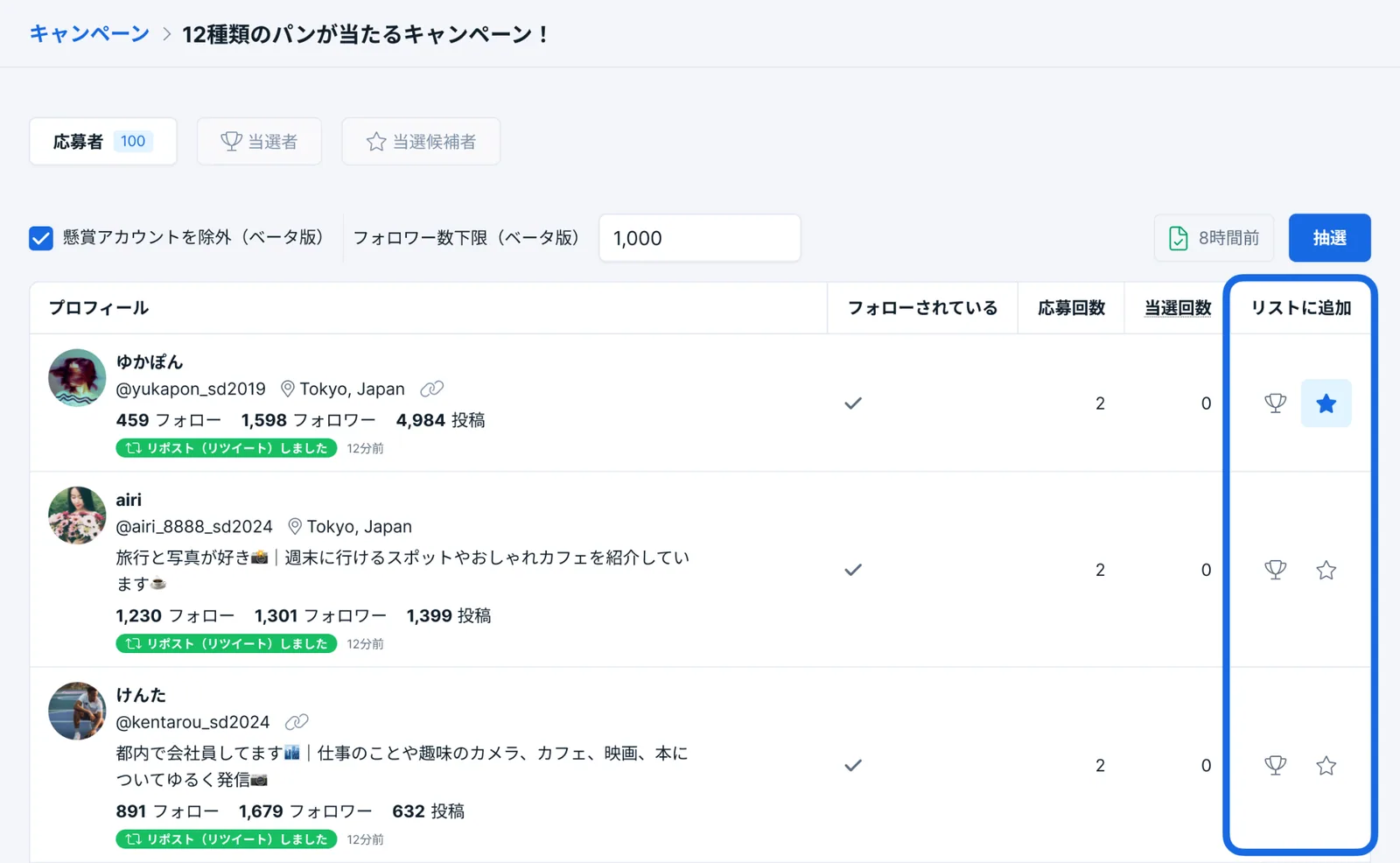
- Click Campaigns in the menu.
- Click "Applicants," "Winners," or "Candidates" in the row of the target campaign.
- Use the buttons in the "Add to list" column to perform the following actions.
- Add to winners: Click "Add to winners" (trophy icon).
- Exclude from winners/candidates: Click "Remove from winners" (trophy icon) or "Remove from candidates" (star icon).
Once the winners are confirmed, send DMs in the next step.
STEP 4: Send bulk DMs to winners
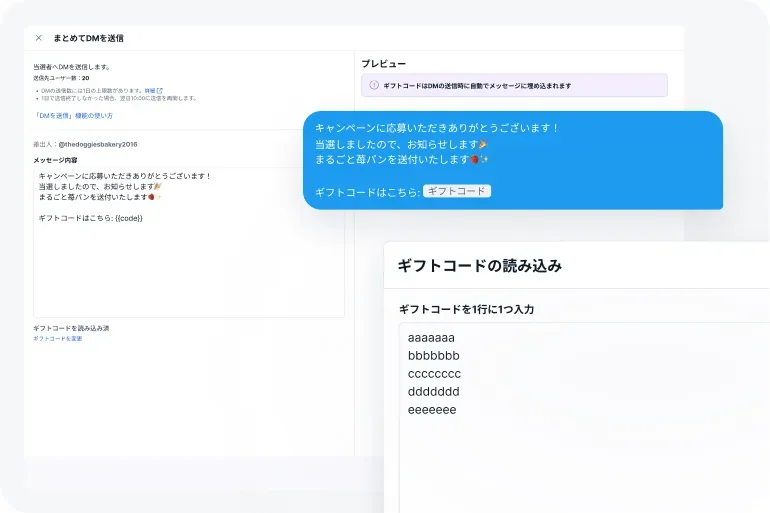
You can send bulk DMs to all users registered in the winners list.
- Click Campaigns in the menu.
- Click "Winners" in the row of the campaign you want to send DMs for.
- Click "Send bulk DMs".
- Enter the message content.
- Click "Send".
DMs are sent sequentially. If the sending limit on SocialDog (500 messages per 24 hours) is reached, the remaining messages will be sent after 24 hours. Once sending has started, it cannot be canceled.
About sending timing
SocialDog automatically determines the timing of message delivery. Depending on the volume of messages and the activity of other SocialDog users, all messages may not be sent within the same day.
Typically, up to 500 messages can be sent per 24 hours, but this limit may be lower if the same message is sent to everyone. Any unsent messages will be automatically resent after 24 hours.
If message delivery fails
Possible reasons for DM delivery failure include:
- The sender's account is flagged as spam
- The recipient's account is temporarily suspended
- X is experiencing a service outage
If delivery fails, please wait at least 30 minutes before trying again.
Sending messages with embedded gift codes
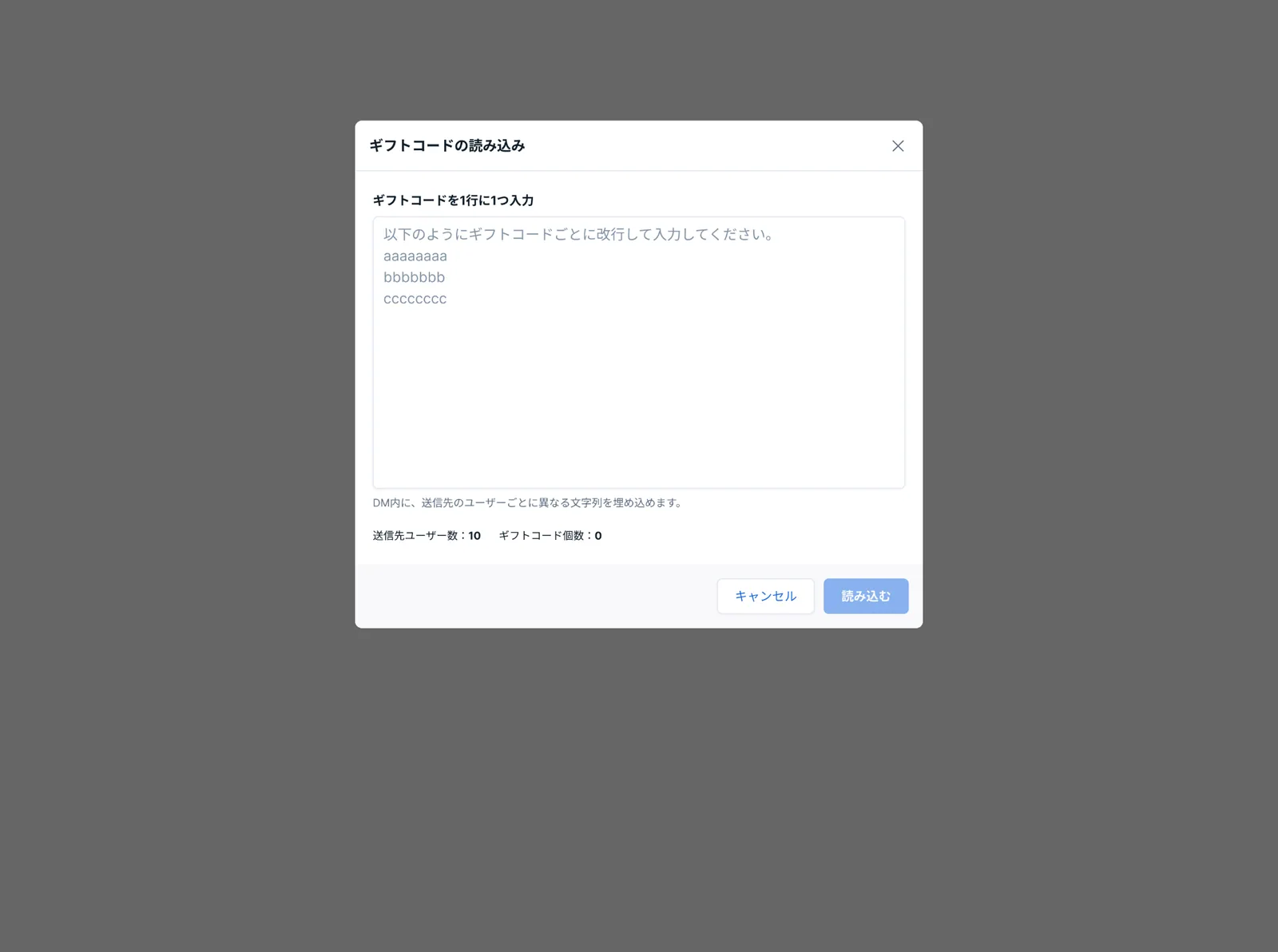
You can embed unique gift codes in DMs sent to winners.
- Click Campaigns in the menu.
- Click "Winners" in the row of the campaign you want to send DMs for.
- Click "Send bulk DMs".
- Enter the message content.
- Click "Import gift codes."
- On the "Import gift codes" screen, enter one gift code per line. You will need as many gift codes as there are recipients.
- Click "Import."
- Enter {{code}} in the message where you want to embed the gift code.
- Click "Send".
SocialDog automatically assigns gift codes to users, so manual assignment is not possible.
You can review sent DMs, including gift codes, within SocialDog. This allows you to reference past campaigns or check and resend gift codes to users whose delivery failed.
Measuring campaign effectiveness
After a campaign, you can use SocialDog's analytics features to review its performance.
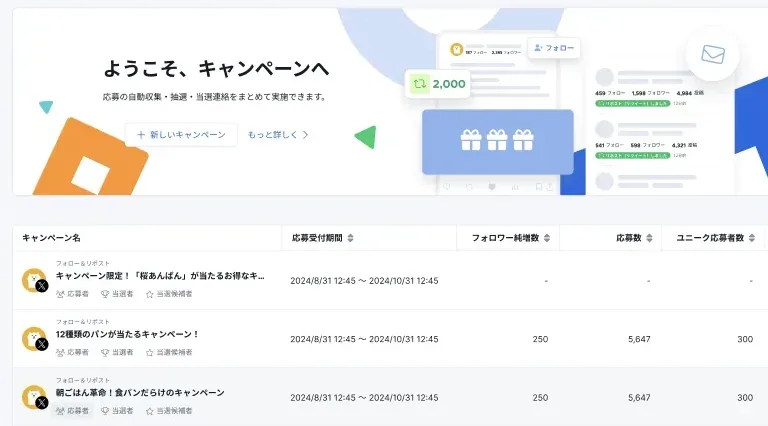
Campaign Application List
The "Campaign" screen provides a summary of net follower growth, total entries, and unique applicants for each campaign.
Other analytics features
Combine the following analytics features to gain deeper insights into your campaign's performance.
- Post performance: Track trends in impressions and engagement for campaign posts.
- Follower acquisition analysis: See at a glance how follower counts changed before and after the campaign.
- Follower retention rate: Track how many followers gained through the campaign continue to follow you.
- Conversation trends: Monitor trends in the number of posts containing campaign-related keywords (requires Keyword Monitor setup).
Use this data to plan future campaigns and improve your social media strategy.
For campaigns other than follow & repost (retweet)
For hashtag campaigns or those with more complex entry requirements, you can create a "Manual applicant registration" campaign by importing applicants via a CSV file.
Related articles: