
A hashtag campaign is an SNS campaign where users participate by posting with a specific hashtag. It is widely used by companies as a user-participation strategy. With SocialDog, you can use the Keyword Monitor feature to streamline hashtag campaign operations, from collecting and filtering applicants to sending bulk DMs (direct messages) to winners.
In this article, we will explain step-by-step how to run a hashtag campaign using SocialDog, from preparation to notifying winners.
What you can streamline with SocialDog
Using SocialDog's Keyword Monitor feature, you can efficiently perform the following tasks for your hashtag campaign:
- Collecting posts with specific hashtags
- Filtering users based on collected posts
- Downloading filtering results as a CSV
Keyword Monitor is available on the Professional, Business, and Enterprise plans.
Posts are retrieved manually. You can collect up to 500 posts per retrieval, and there is a limit on the number of retrievals allowed in the last 30 days depending on your plan.
| Plan | Retrievals in the last 30 days | Max posts collected |
| Enterprise plan | 100 times | 50,000 |
| Business plan | 30 times | 15,000 |
| Professional Plan | 10 times | 5,000 |
*Posts older than 30 days cannot be retrieved.
Step 1: Set up Keyword Monitor
First, register the hashtags you will use for the campaign in Keyword Monitor. This allows you to collect posts containing the specified hashtags.
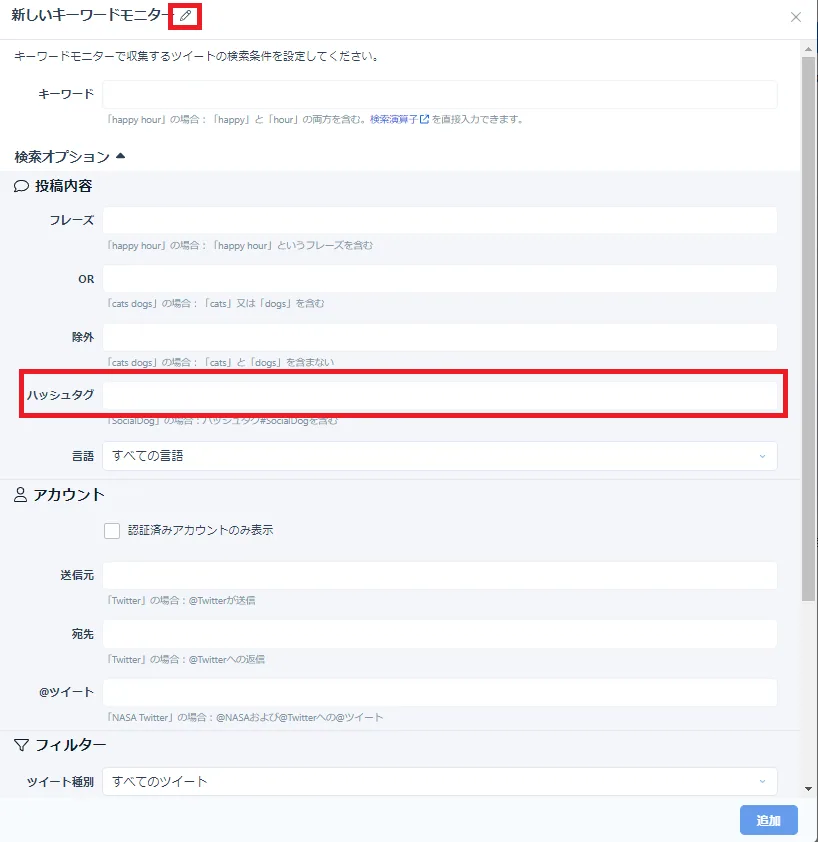
- Open Keyword Monitor Settings and click Add in the top right.
- Click the ✎ at the top and enter a title (e.g., August 2023 Hashtag Campaign).
- In the Hashtag field under Search Options, enter the campaign hashtags and click Add in the bottom right.
You don't need to include # when entering hashtags. To register multiple hashtags, separate them with a space to use an OR condition (collects posts containing any of the hashtags).
For example, entering "SocialDog Soshurudoggu" will collect posts containing either #SocialDog or #Soshurudoggu.
Related articles:
Step 2: Collect posts
Once the Keyword Monitor setup is complete, collect posts containing the relevant hashtags.
- Click Inbox.
- Click the title of the Keyword Monitor you want to collect from.
- Click 'Get latest posts' at the top of the screen.
- Select the number of posts to retrieve from the dropdown and click Get latest posts.
- A list of posts matching the set criteria will be displayed.
You can specify the number of items to retrieve per session on the following screen.
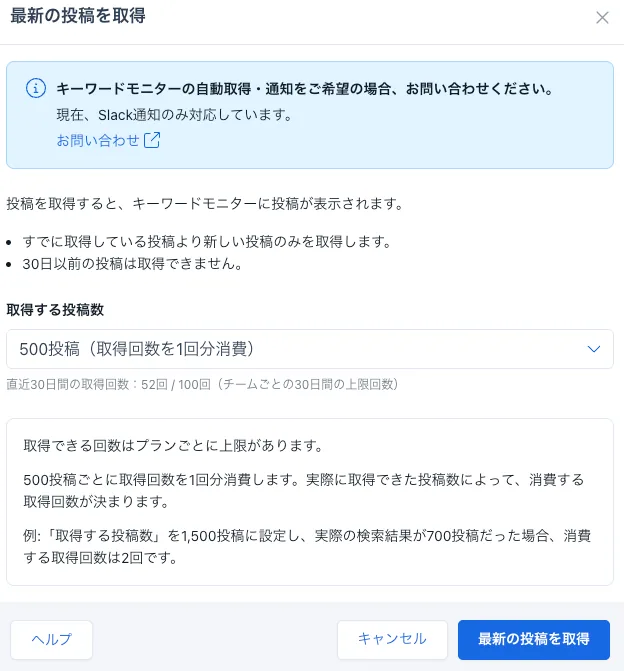
You can download the list of collected posts as a CSV from the "..." menu in the upper right corner.
*The number of times you can retrieve data in the last 30 days varies by plan.
Related articles:
Step 3: Filter applicants
With the list of collected posts displayed, use filters to narrow down users who meet the campaign criteria.
Click "Filter" in the upper right corner.
If following is a requirement, check "Followers only."
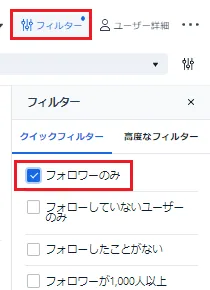
You can download the filtered results as a CSV from the "..." menu in the upper right corner.
You can also use the Advanced filter to narrow down results by specific criteria, such as excluding bot or adult accounts. For more details, see "Use Advanced filter."
Step 4: Select and contact winners
Use SocialDog's campaign feature
By downloading the list of users filtered in Step 3 as a CSV and uploading it to SocialDog's "Campaign" feature (Business and Enterprise plans), you can manage everything from the drawing to bulk DM delivery within SocialDog. It also supports embedding unique gift codes in DMs.
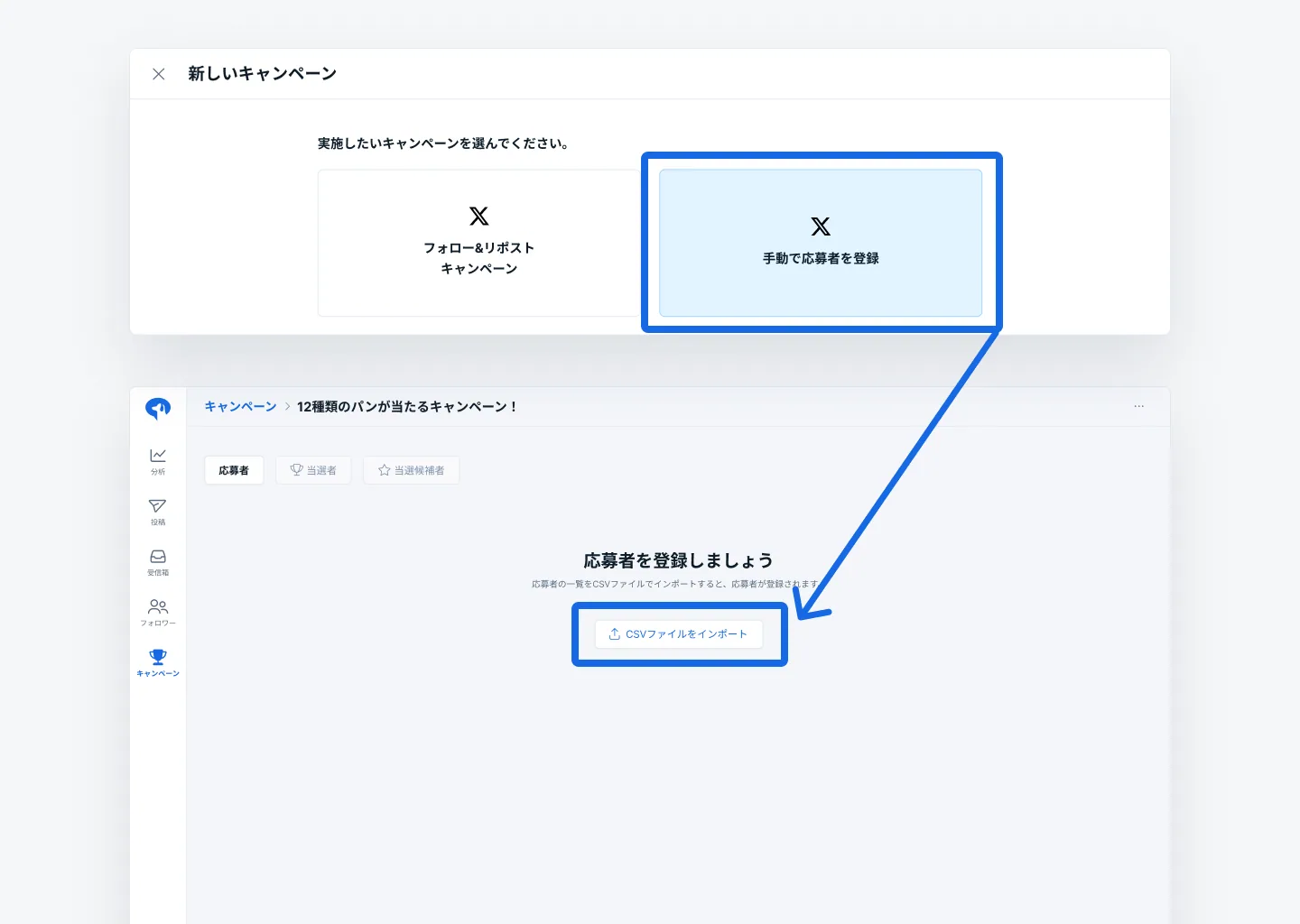
For instructions on how to use these features, please refer to the following help articles.
Related articles:
For follow & repost (retweet) campaigns
For campaigns where following and reposting (retweeting) are requirements, you can use SocialDog's "Campaign" feature (Business and Enterprise plans). You can centrally manage everything from automatic applicant collection and drawings to sending DMs to winners, including support for embedding unique gift codes.
See the following article for more details.
Related articles: