Following the previous article, "Defining management policies," this guide explains how to set KPIs (quantitative goals).
Setting KPIs (quantitative goals) for X operations enables effective improvements, allowing you to identify issues based on data and take swift action. This article provides an easy-to-understand explanation of key KPI metrics and how to set them according to your objectives.
Key KPI metrics
We will explain the definitions and importance of key KPI metrics for X. Understanding these metrics will enable you to set effective KPIs.
1. Impressions
- Definition
- The number of times a post is displayed.
- Why it matters
- It shows how many people saw your post and helps measure brand awareness. It is also a useful metric for measuring the effectiveness of ads and promotions.
2. Engagements
- Definition
- The number of interactions from users, such as likes, reposts (retweets), and replies.
- Why it matters
- A metric that shows the depth of interaction with followers and measures interest in the brand.
3. Link clicks
- Definition
- The number of times a link in a post is clicked.
- Why it matters
- A metric highly likely to lead to actual actions, such as website visits or product purchases.
4. Follower count
- Definition
- The number of followers (users who receive updates) of the account.
- Why it matters
- A metric that measures brand credibility and reach.
5. Number of mentions
- Definition
- The number of times your brand or products are mentioned on X.
- Why it matters
- A metric that measures brand credibility and awareness.
Setting KPIs based on objectives
Below, we will introduce appropriate KPI settings for each management objective. We will explain which metrics to prioritize and how to utilize them based on your specific goals.
1. Increasing brand or service awareness
Potential KPIs
- Impressions
- An awareness metric to check how many people saw your posts
- Link clicks
- A metric to identify users with high purchase intent after viewing a post
- Follower count
- Since a high follower count doesn't always lead directly to increased awareness, it's important to evaluate it alongside the metrics above
As impressions increase, clicks also tend to increase proportionally, making impressions a crucial metric for expanding awareness. Choose one or more of these metrics to set as your KPI based on your objectives.
How to check impressions in SocialDog
- In Post overview impressions, you can see the number of impressions for your posts at a glance.
- Detailed analysis methods are explained in "How to analyze posts: Basics," where you can also check click counts.
Factors affecting impressions
- Factors for increase
- High interest in content: Trending topics, timely information, or unique perspectives resonated with users and reached a large audience.
- Finding the right posting times: Posting at specific times helped reach the target audience when they were most active.
- Effective use of hashtags and trends: Posts associated with popular hashtags or trends reached a wide range of users.
- Spread via reposts and likes: Increased engagement from other users allowed the post to reach a wider audience.
- Factors for decrease
- Decreased relevance of content: Content was uninteresting to the target audience, or posts became vague and less appealing.
- Inappropriate posting times: Posting when target followers were less active reduced visibility opportunities.
- Impact of competing posts: Posts were overshadowed by other high-profile content or trends occurring at the same time.
- Algorithm changes: Changes to the platform's algorithm made it harder for posts to be displayed prominently.
2. Strengthening customer communication
Potential KPIs
- Engagements
- A metric that measures brand interest by showing the number of user reactions, such as likes, reposts, and replies.
- Link clicks
- A metric to identify users with high purchase intent after viewing a post
- Follower count
- Since a high follower count doesn't always lead to better communication, it's important to evaluate it alongside the metrics mentioned above.
As engagement increases, clicks tend to increase proportionally, making engagement a vital metric for strengthening customer communication. Choose one or more of these metrics to set as your KPI based on your goals.
How to check engagement in SocialDog
- In Engagement, you can view the total number of your posts, replies, reposts, and likes, along with a graph showing trends over time.
- Detailed analysis methods are explained in "How to analyze posts: Basics," where you can also check click counts.
Factors affecting engagement
- Factors for increase
- Content resonated with the target audience: The content was useful, entertaining, or emotionally relatable to followers and viewers.
- Effective calls to action: Specific prompts like "What do you think about this?" or "Give us a like!" were successful.
- Use of visual elements: Eye-catching visuals such as attractive images, videos, or infographics encouraged engagement.
- Emotional response from followers: Content that stirred emotions like joy, surprise, or anger prompted comments and reposts.
- Use of hashtags and trends: Using relevant hashtags or trends attracted actions from new users.
- Factors for decrease
- Decreased relevance of content: Posts did not align with the target audience's interests and failed to trigger actions.
- One-way communication: A lack of posts encouraging two-way conversation led to a decline in follower response.
- Lack of visual elements: A series of text-heavy posts failed to capture attention effectively.
- Inappropriate posting times: Posting times did not align with when the target audience was most active.
- Repetitive frequency or content: Followers lost interest due to a series of similar posts.
3. Improving brand image
KPI settings are the same as "2. Strengthening customer communication" above.
Set KPIs based on engagement to measure the level of reaction and interest in the company.
4. Collecting feedback
Potential KPIs
- Number of mentions
- The number of times your company's brand or products are mentioned on X.
- Active support count
- The number of actions taken on posts about your company's services found on X.
When collecting feedback, set one or both of these metrics as your KPI.
Finding mentions and related posts in SocialDog
Setting up Keyword Monitor
- Click Inbox from the menu.
- Click Keyword Monitor Settings.
- Click Add.
- Click the "✎" icon next to the new Keyword Monitor and enter a title.
- Enter the keywords you want to track in the keyword field.
- Click Add to complete the setup.
Collecting posts with Keyword Monitor
- Click the keyword you want to collect posts for.
- Click 'Get latest posts' at the top of the screen.
- Select the 'Number of posts to get' from the dropdown and click 'Get latest posts' at the bottom right (you can choose the number of times to get posts depending on how many you want to collect).
Setting actual KPIs
There are two main approaches to setting specific KPI values. Generally, setting KPIs based on your account's historical data is common. If no historical data exists, you can either run your account to gather results or set KPIs by referencing other companies.
Two ways to set KPIs
- Set KPIs based on historical data by referring to "How to analyze posts: Basics".
- Set KPIs by referencing the performance of other accounts.
- Impressions and engagement can be calculated for a 4-week period based on another account's total weekly posts (since numbers vary greatly by follower count and content, it's important to carefully choose reference accounts in the same industry with a similar follower count).
- Posts (images) display engagement metrics from left to right in the order of replies, reposts, and likes, followed by impressions.
- Impressions and engagement can be calculated for a 4-week period based on another account's total weekly posts (since numbers vary greatly by follower count and content, it's important to carefully choose reference accounts in the same industry with a similar follower count).
Analyze competitor accounts with competitor analysis
It is crucial to use the post count and frequency of growing accounts as a reference. Once you've set your KPIs, analyze competitor and benchmark accounts.
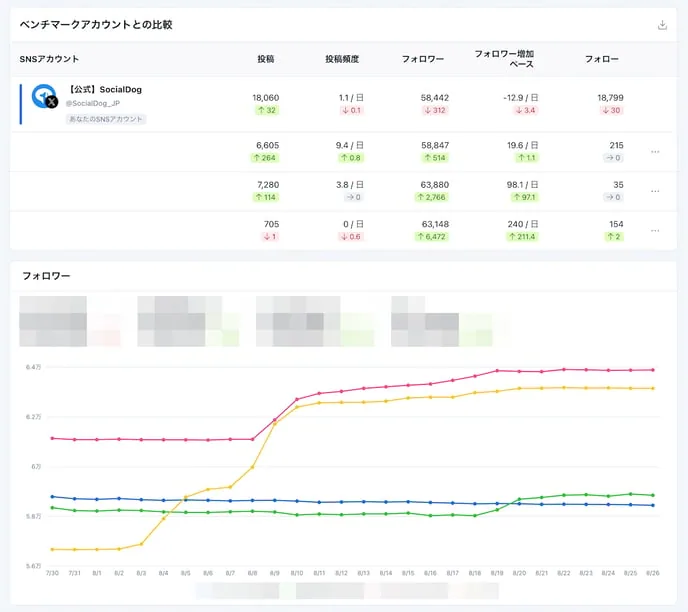
SocialDog's "Competitor Analysis" allows you to compare the following metrics between your connected account and the accounts you want to benchmark.
- Posts
- Posting frequency
- Follower count
- Follower growth rate
- Follow count
Set up competitor accounts
- Click "Analytics" in the menu, then select "Competitor Analysis".
- Enter the target username (starting with @) in the "Search by X username" search box at the top of the screen.
- Select the "Add to competitor accounts" button at the top right of the screen.
Competitor analysis lets you efficiently conduct research and compare metrics by checking data from other accounts.
Select a competitor in the "Comparison with Competitor Accounts" table to view comparison data for that specific account.
Summary
We have explained how to set KPIs for X operations.
Setting KPIs helps you effectively measure performance and identify issues aligned with your goals. Set appropriate KPIs based on your objectives and establish specific numerical targets by referencing past data and competitor accounts.
SocialDog makes it easy to visualize and analyze every metric. Achieve effective account management through continuous improvement based on your established KPIs.
In the next "X Operations Guide," we will cover the next step after setting KPIs (quantitative goals): "Establishing X operation rules."