To use SocialDog, you first need to connect your SNS accounts.
Once you have registered for SocialDog and signed up for a paid plan (including free trials), follow the on-screen instructions to connect your SNS accounts.
If you have already connected your SNS accounts, please proceed to "Getting started 2: Checking past data".
Steps to connect your accounts
- Click the SocialDog icon at the bottom left of the page.
- Click "SNS accounts".
- Click "Add SNS account".
- If the number of accounts you want to connect exceeds the number of SNS accounts in your current plan, please upgrade from "Plans / Billing" before clicking "Add account".
- Enter your SNS account login information and click "Log in".
- Rest assured that your password will not be stored in the SocialDog system.
- If you have two-factor authentication enabled in your SNS login settings, the connection will be completed after you enter your login information and perform the two-factor authentication.
SNS accounts cannot be connected via the app. Please use the web version.
Reference articles:
- Connect your X account
- Connect an Instagram account (using "Log in with Instagram")
- Switch your Instagram account to a business account and link it to a Facebook page
- Connect a Facebook page
- Connect a Threads account
- Connect a YouTube account
If you see a message like this
Scenario 1
If the X account you are trying to connect is already linked to another team on the Free plan, the following screen will be displayed.
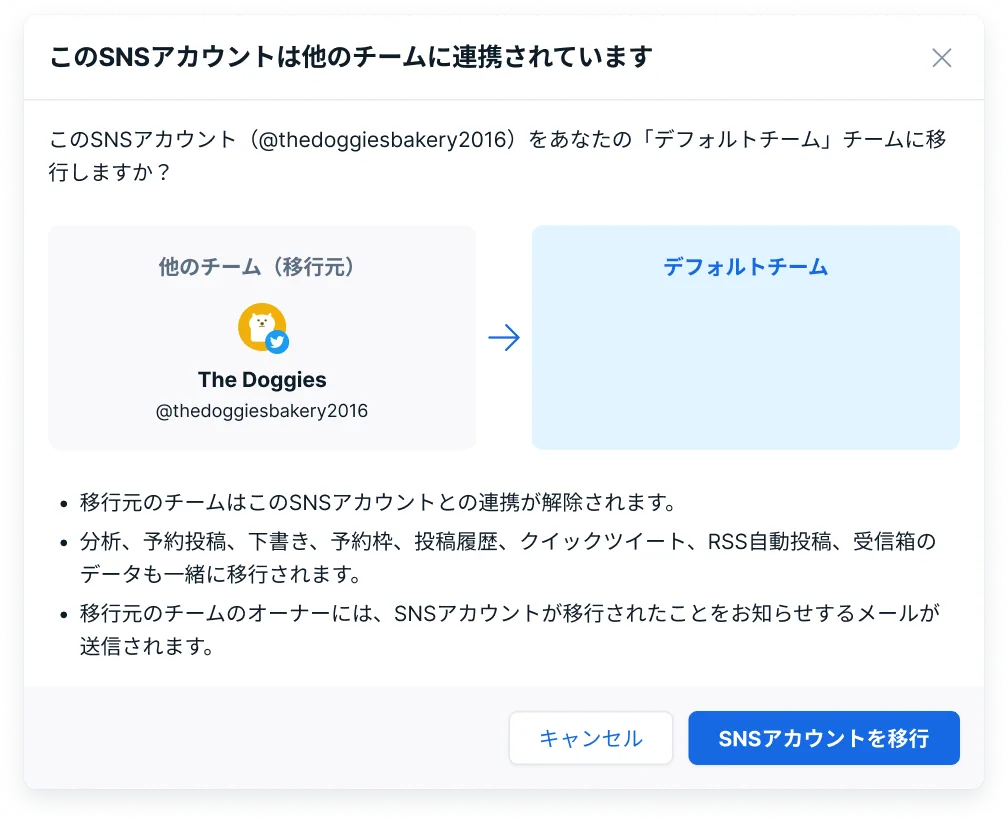
To migrate to the newly created team, click "Migrate SNS account".
Scenario 2
If the following screen appears, you will need to disconnect the X account from the other team.
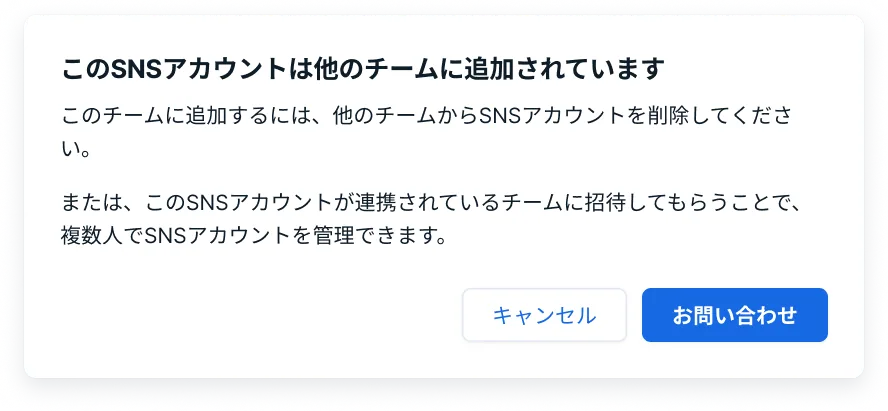
For more details, please see Unable to connect X account: "This SNS profile is connected to another team".
Next, let's proceed to Getting started 2: Checking past data.