SocialDog allows you to use the "Scheduled Posts" feature to automatically post to social media at a specified date and time. This article explains the basics of scheduling posts and how to use the draft feature for your posting workflow.
What are scheduled posts?
With SocialDog's scheduling feature, simply set your content and the date and time in advance, and it will be posted automatically at the specified time.
In addition to regular posts, you can also schedule reposts (retweets) and threads. You can preview your posts before they go live, helping you catch typos or layout issues in advance.
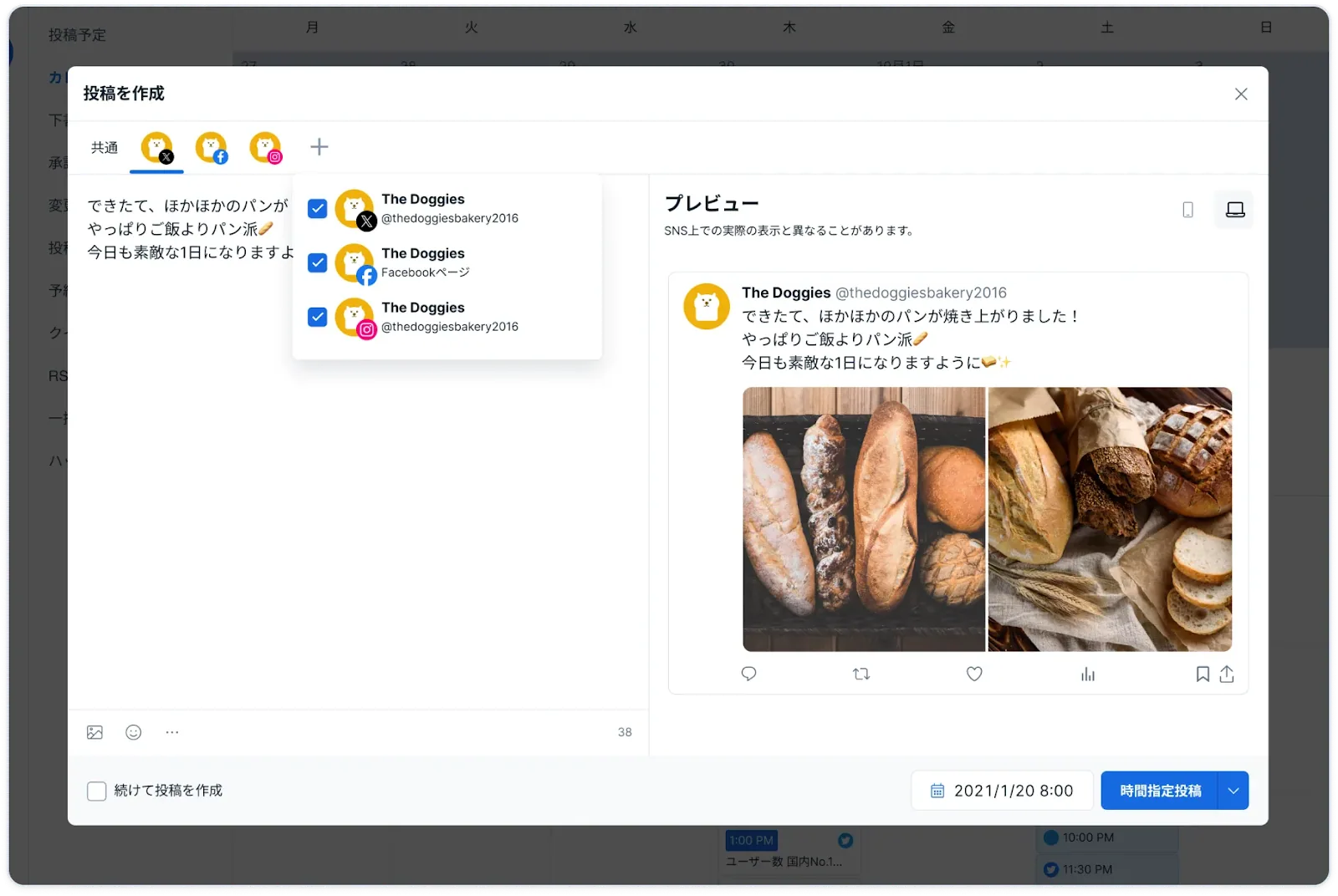
Scheduling posts in bulk saves you the trouble of updating in real-time and improves operational efficiency. By using "Writing Assist AI," you can also check for typos and potential backlash risks beforehand. Use it to ensure safe and reliable account management.
For instructions on how to use these features, please refer to the following help articles.
Related articles:
Using the draft feature
The draft feature is useful when you want to create content but haven't decided on a posting date and time yet. You can save your posts and later specify a date and time to schedule them.
There is no limit to the number of drafts you can have. Use them however you like—whether it's for jotting down ideas or preparing multiple high-quality posts in advance.
How to add to drafts
- Click "Posts" and then click "Scheduled."
- After entering your post content, click the "▼" icon in the bottom right and select "Add to drafts."
How to post from drafts
- Click "Posts" and then click "Drafts."
- Click the draft you want to post.
- Click "▼" and select either "Post now," "Schedule post," or "Add to posting times."
Next steps
Now that you know how to schedule posts, let's move on to Getting started 4: Managing followers.